How to make an invoice (and get paid) with help from AI
By AiKit17 min read

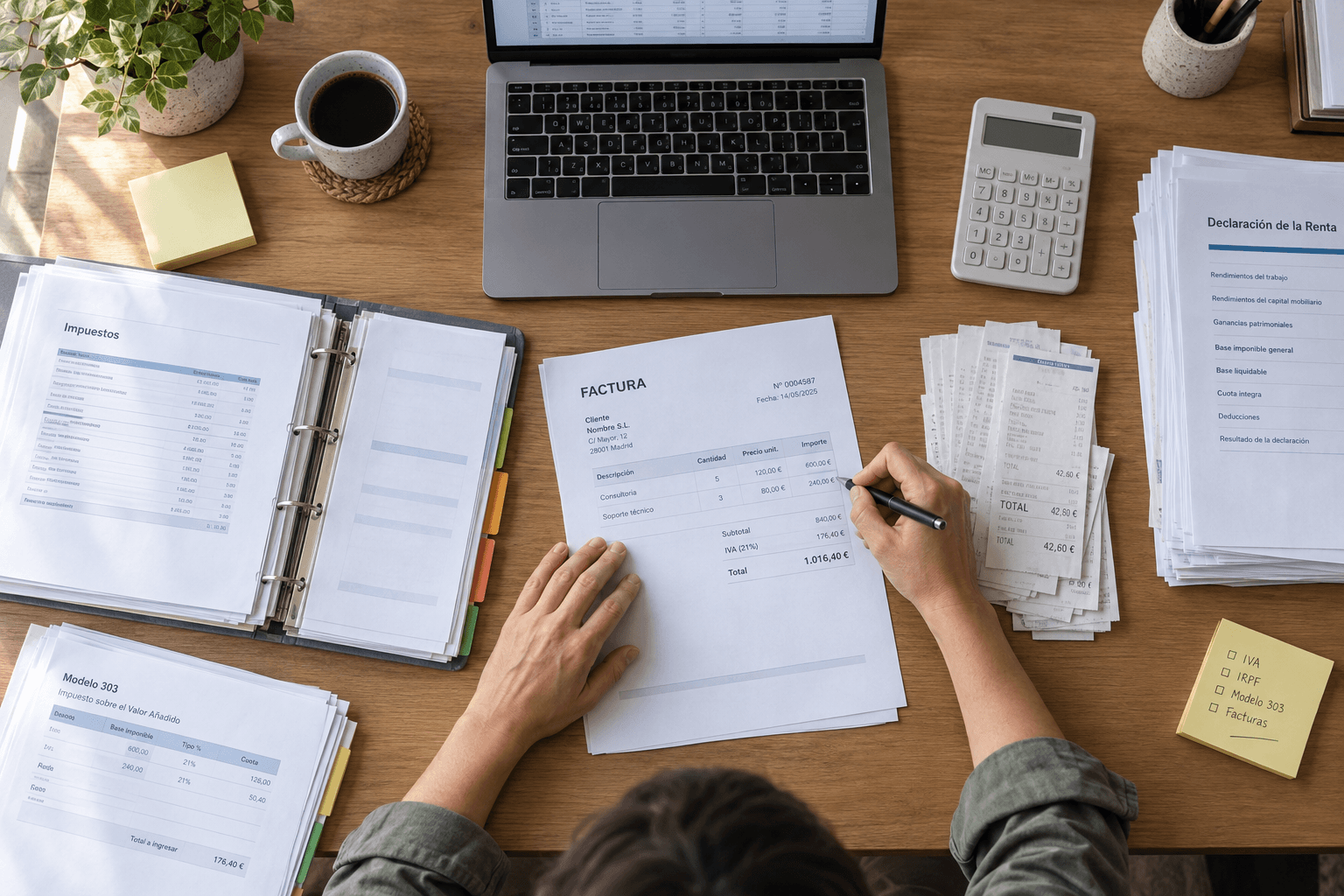
All it takes is one missing detail for the invoice to be sent back and for you to get paid later. To know how to make an invoice, start with these details: number and series, date, your details and the client's with their tax ID (NIF), description, taxable base, VAT rate and amount, and total. AI checks they are all there and drafts the reminder if the client doesn't pay.
What details must an invoice include?
#To keep an invoice from being sent back, it must include a number and series, a date, both parties' details with their NIF, a description of the work, the taxable base, the VAT and the total. These are the invoice requirements set by article 6 of the Invoicing Regulation (Reglamento de facturación), Royal Decree 1619/2012. Your client needs their NIF on the invoice to deduct the VAT you charge them, so without it they can ask you for a new one.
It's natural to feel uneasy leaving that check to AI, because if it misses a detail, the invoice comes back and you're the one left waiting to get paid. It helps to know how it works. An AI assistant is the app you use, such as ChatGPT, and it runs on one or more large language models (LLMs), which are what generate the answers. The model reads the PDF or the photo of the invoice and compares it with the list you give it.
It does that comparison well, because spotting what's missing or doesn't add up is a matter of reading carefully: a missing NIF, a date, a sum that doesn't match the total. For the arithmetic, some assistants, such as AiKit Chat, don't estimate the result: they calculate it with a tool. The tax treatment of your transaction, on the other hand, isn't decided by the model. Whether it carries VAT or withholding depends on your situation, which isn't written on the invoice, and your accountant is the one who confirms it.
The table lists every mandatory detail. The withholding row comes from a different law, Act 35/2006 on personal income tax (IRPF):
| Detail | What to put | Common mistake |
|---|---|---|
| Number and series | A sequential number within each series, with no gaps. Corrective invoices go in a separate series | Skipping a number or mixing corrective invoices with ordinary ones |
| Date of issue | The day you issue the invoice, plus the date of the transaction if it's different | Putting only today's date when the work was done in another month |
| Your details | Full name or registered company name, NIF and address | Forgetting the NIF or leaving an old address |
| Client details | Name or registered company name, NIF and address. Always, if it's a company or self-employed | Using the trade name instead of the registered company name |
| Description | The work you did, with quantity and unit price where applicable | Writing “professional services” without saying which |
| Taxable base | The price before tax, with discounts shown separately | Using a price that already includes VAT as the base |
| VAT rate and amount | The percentage you apply and the resulting amount | Showing the amount without the rate, or vice versa |
| IRPF withholding | If it applies, the percentage and the amount deducted | Applying it to a private individual, who doesn't withhold |
| Total | Base plus VAT, minus withholding if there is any | Adding the withholding instead of subtracting it |
| Statement if there's no VAT | Why it has none and which rule covers it | Leaving VAT at zero without explaining why |
With that list, AI can check the invoice for you. Attach the invoice and the list, and ask it to show you in a table what's missing or doesn't add up. Also ask it not to correct amounts or decide the VAT: you confirm that with your accountant. For example:
It gives you back that table with every detail marked, and if something doesn't add up, you'll know where the error is. Go through it with the invoice in front of you, because with a blurry photo it can misread a digit of the NIF. That way you stop the invoice going out incomplete and coming back just when you were counting on the payment. If you want to see what else AI can do in your business, start with the guide to AI for SMEs.
When is an invoice VAT-free or subject to withholding?
#An invoice is VAT-free only in the cases the law provides for, and it carries withholding when a professional invoices a company or another self-employed person (autónomo). Getting this right stops it being sent back or someone paying too much. The reason lies in how the two taxes work: you pay the VAT you charge over to the Spanish Tax Agency (Agencia Tributaria), and your client pays the withholding to it as an advance on your personal income tax.
When an invoice has no VAT, it must say why and cite the rule, since without that statement the zero tax looks like an oversight. The most common cases are these:
As a general guide, VAT is 21% (standard), 10% (reduced) or 4% (super-reduced). Withholding, if you're a professional, is usually 15%, or 7% in the year you start and the following two. The 7% only applies if you've told the client, because they're the one who applies the withholding. Private individuals don't withhold, as they aren't required to.
If you ask AI to decide among so many nuances, it will give you the most likely answer for a similar case, which may not be yours. Instead, ask it to explain which case you might fall into and what to ask your accountant. Once they confirm it, AI drafts the statement for you:
How do you make an invoice step by step?
#You make an invoice step by step, starting from what you agreed with the client and what you actually did. It's best to issue it the day you finish the work, because the client can't pay an invoice they don't have yet.
It's tempting to leave it until the end of the month, when you have a moment. It seems to make no difference, but as the days go by the extras get forgotten, like the extra hour or the change the client asked for by email. And missing just one means you've worked those hours for free.
To issue invoices without leaving anything out, we recommend this order: AI cross-checks the details and prepares the draft, and you decide and issue it.
1. Cross-check what you've done against what you quoted. Paste the accepted quote, your time notes and the emails with the changes into the assistant. Ask it to list what's still to be invoiced, because an extra agreed by email doesn't appear in the quote.
2. Prepare the fixed details. Take the next number in your series, with no gaps: here, F-2026-014. Add the date and check your details and the client's, including their NIF. You set the numbering yourself, because it comes from your invoice register and AI can't see it.
3. Ask AI for the draft, with the VAT and withholding your accountant has confirmed. If you don't give it them, the model uses the most likely ones, which may not be the right ones for your case:
4. Check the draft against the list of details and the review prompt from the first section. Pay particular attention to the client's NIF and to the base being the quote plus the extras. An error that slips through here forces you to issue a corrective invoice later.
5. Issue the invoice from your invoicing software and send it as a PDF, with the payment terms written on it. Also note the due date, because the first reminder goes out from it if the client doesn't pay.
With those steps, the example invoice, generated with AI, would look like this table:
| Field | Content |
|---|---|
| Number | F-2026-014 |
| Date of issue | 5 October 2026 |
| Issuer (fictitious) | [Designer's name] · NIF: [Issuer's NIF] · [Address] |
| Client (fictitious) | [Client company] · NIF: [Client's NIF] · [Address] |
| Item | Corporate website design |
| Taxable base | €1,200 |
| VAT (21%) | €252 |
| IRPF withholding (15%) | −€180 |
| Total payable | €1,272 |
| Due date | 4 November 2026 (30 days) |
| Payment method | Bank transfer to [IBAN] |
As for e-invoicing, for now a PDF sent by email is still valid, as long as the client accepts it. Mandatory e-invoicing between businesses is a separate matter, with its own timetable.
As for the deadline, article 11 of the Invoicing Regulation distinguishes two cases. If the client is a company or self-employed, the invoice is issued before the 16th of the month following the transaction. If it's a private individual, at the time of the transaction.
Bear in mind, though, that an example or template made with AI is not invoicing in compliance with VeriFactu. VeriFactu requires invoicing software to record each invoice so that it can't be altered without leaving a trace. A standalone document doesn't keep that record, so use adapted invoicing software to issue your invoices.
What type of invoice do you need?
#The type of invoice you need depends on the transaction: it's almost always the ordinary one, and the other three cover specific cases. Getting it right first time saves redoing it, because each type requires different details and the corrective invoice goes in its own series.
| Type | When it's used | What changes |
|---|---|---|
| Ordinary or full | The norm when invoicing companies and self-employed people | Includes all the details in the table in the first section |
| Simplified (formerly “ticket”) | Amounts up to €400 including VAT, or up to €3,000 in some sectors, such as hospitality or retail | Doesn't require the client's details, unless they ask for them |
| Corrective | To correct an invoice already issued | The original isn't deleted or edited; it goes in its own series and cites the invoice it corrects |
| Pro forma | To send an offer or preview what will be invoiced | It isn't an invoice and has no tax validity |
A pro forma lets the client approve an amount before you start. The ordinary invoice is issued afterwards.
A common question comes up once the invoice has been sent. If the designer's F-2026-014 went out with the client's NIF wrong, the first temptation is to open the PDF and change it. An issued invoice, however, can't be deleted or edited. It stays as it is and you issue a corrective invoice, in its own series, that cites F-2026-014.
If you're not sure which type fits your case, tell AI about it: it will explain it and prepare an example for you.
What should you do if the client doesn't pay?
#If the client doesn't pay, chase the invoice as soon as it falls due and raise the tone step by step, because each step leaves more of a written record. Unpaid invoices are work you've already paid for yourself: your hours, your expenses and, generally, the VAT, which is declared on the invoice issued even if you haven't been paid yet.
Between businesses and self-employed people, the Late Payment Act 3/2004 (Ley 3/2004 de morosidad) sets the payment period. If no other period was agreed, it's 30 days, counted from when you provide the service and not from the invoice date. If one was agreed, 60 days at most.
Once the period has passed, the law lets you claim the late-payment interest it sets and €40 in collection costs per invoice. This law doesn't apply to a private client, so your letters don't cite it.
To chase an unpaid invoice, these are the usual steps. Between one and the next, 7 or 15 days is a suggested pace, not a rule:
At each step, AI adapts the tone if you give it one of your emails with that client, because that way it imitates how you write instead of guessing a style. Then you send it yourself from your email. If your email is connected to the assistant with read-only permission, it can read your messages with that client but not send any. This is how you'd ask for the first reminder for F-2026-014:
It gives you the subject and body, ready to paste into your email. Before sending it, check that the amount is €1,272 and not the €1,200 base, because it's the first thing the client will look at. AI can't see whether you've already been paid, so the next step is your call. If client emails are piling up, we explain how to organise them in the guide to business productivity with AI.
What shouldn't you leave to AI when invoicing?
#You shouldn't leave AI the decisions that set how much you pay or what risk you take on. The model generates what's likely from what you give it, and your tax situation isn't on the invoice.
The rule for the whole process is this: AI explains, organises and drafts; your accountant decides.
How does AiKit help you invoice and get paid?
#To apply this guide you need two things: an assistant that checks and drafts with your documents, and VeriFactu-ready software that issues the invoice. The tax side is still your accountant's job.
In AiKit, both are in the same suite. Chat checks the PDF before you send it, prepares quotes and drafts reminders and claims. It reads your Gmail or Outlook email if you connect it, but sends nothing: you do that. In this training video you can see how it reads a PDF invoice; it appears there under its former name, AiKit Plus. AiKit Desk creates and sends invoices that comply with VeriFactu, and with TicketBAI in the Basque Country, and generates e-invoices in Facturae format.
Where should you start this week?
#Start with the invoices you've already issued, because a missing detail in them can delay a payment. Run the last three through the review prompt from the first section and note what's missing. If one you've already sent has an error, remember it's corrected with a corrective invoice, not by editing the original. Then sort the overdue ones by date and prepare the first reminder for the oldest. To bring AI into other areas of your business, go back to the guide to AI for SMEs.